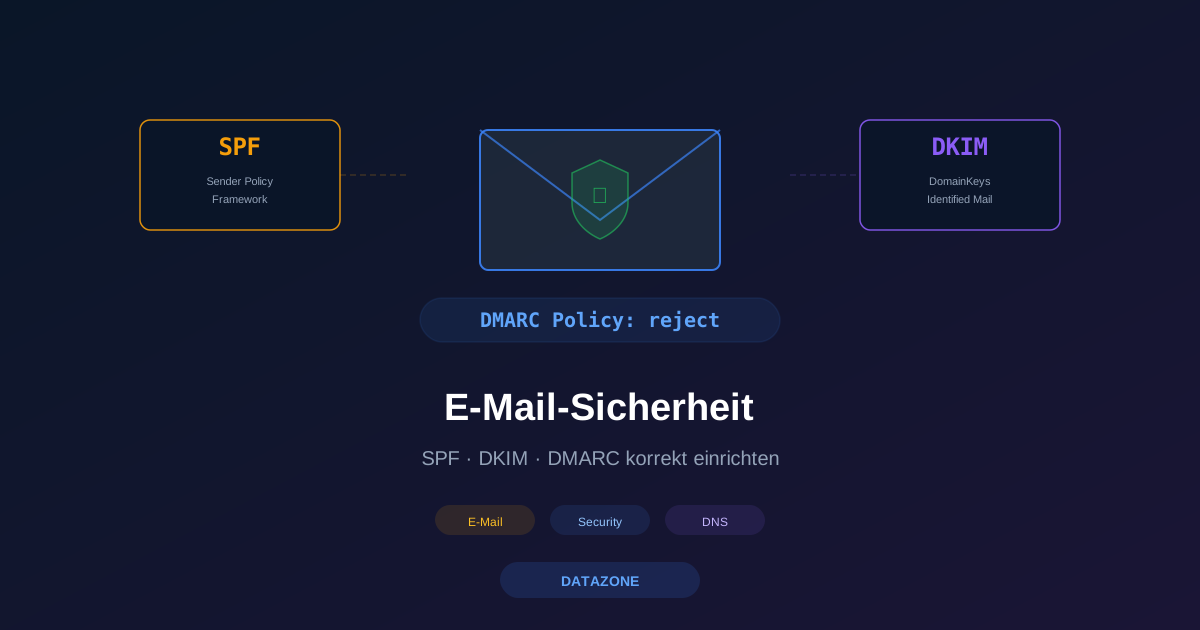
Over 90% of all cyberattacks start with an email. Phishing, spoofing, and Business Email Compromise (BEC) are among the most common attack methods — and they work because email has no built-in authentication mechanism. Any SMTP server can claim to send on behalf of any domain. This is exactly where SPF, DKIM, and DMARC come in: three DNS-based protocols that together ensure only authorized servers can send emails on behalf of your domain. This article shows how SMBs can set up all three correctly.
Why Email Authentication Is Essential
Without SPF, DKIM, and DMARC, an attacker can send emails that look exactly as if they came from your domain. The recipient sees ceo@yourcompany.com in the sender field — and trusts the message. The consequences range from forged invoices to credential theft and wire fraud.
Since February 2024, Google and Yahoo require SPF and DMARC for all senders delivering more than 5,000 emails per day. Microsoft 365 followed in April 2025. Without these records, emails increasingly land in spam or are rejected entirely — including legitimate ones.
SPF: Who May Send on Behalf of Your Domain?
The Sender Policy Framework (SPF) defines via a DNS TXT record which IP addresses and servers are authorized to send emails for a domain. The receiving mail server checks the SPF record and compares it against the sending server’s IP.
Creating the DNS Record
yourcompany.com. IN TXT "v=spf1 mx ip4:203.0.113.10 include:_spf.google.com ~all"Components explained:
v=spf1— Identifies the record as SPFmx— All MX servers for the domain may sendip4:203.0.113.10— This specific IP is authorized to sendinclude:_spf.google.com— Google Workspace as an authorized sender~all— Soft fail: unauthorized servers are flagged but not blocked-all— Hard fail: unauthorized servers are rejected (target after testing)
Common SPF Mistakes
SPF allows a maximum of 10 DNS lookups. Each include and redirect counts as a lookup. With many third-party services (newsletter tool, CRM, helpdesk), this limit is quickly reached. Check the count with tools like MXToolbox. Alternatives when exceeding the limit: SPF flattening or using subdomains for different services.
DKIM: A Digital Signature for Every Email
DomainKeys Identified Mail (DKIM) cryptographically signs every outgoing email. The sending server inserts a signature into the mail header, and the receiving server verifies it against a public key in DNS.
How DKIM Works
- When sending, the mail server calculates a hash over the email’s header and body
- The hash is signed with the private DKIM key
- The signature is inserted as a
DKIM-Signatureheader - The recipient retrieves the public key via DNS and verifies the signature
DNS Record for the Public Key
selector1._domainkey.yourcompany.com. IN TXT "v=DKIM1; k=rsa; p=MIGfMA0GCSqG..."The selector (e.g., selector1) enables multiple DKIM keys per domain — useful for key rotation or when different systems send with their own keys.
DKIM in Practice
Most mail servers and hosted services generate DKIM key pairs automatically. With Google Workspace, Microsoft 365, or Postfix, the public key simply needs to be added as a DNS TXT record. Key length should be at least 2048 bits — 1024-bit keys are considered outdated.
DMARC: The Control Center for SPF and DKIM
Domain-based Message Authentication, Reporting and Conformance (DMARC) builds on SPF and DKIM and defines what should happen to emails that fail both checks. Additionally, DMARC provides reports on all sending attempts made on behalf of your domain.
Configuring the DNS Record
_dmarc.yourcompany.com. IN TXT "v=DMARC1; p=quarantine; rua=mailto:dmarc@yourcompany.com; ruf=mailto:dmarc-forensic@yourcompany.com; adkim=s; aspf=s; pct=100"DMARC Policies Overview
| Policy | Behavior | Use Case |
|---|---|---|
p=none | Monitor only, no action | Phase 1: Observe who sends on behalf of the domain |
p=quarantine | Move to spam | Phase 2: Isolate suspicious emails |
p=reject | Reject entirely | Phase 3: Full protection (target) |
Important DMARC Parameters
rua— Address for aggregate reports (daily XML summaries)ruf— Address for forensic reports (individual failed emails)adkim=s— Strict alignment: DKIM domain must exactly match the sender domainaspf=s— Strict alignment for SPFpct— Percentage of emails the policy applies to (useful for gradual rollout)
Correct Implementation Order
A rushed rollout can cause legitimate emails to be blocked. The recommended approach:
Phase 1 — Set Up SPF (Weeks 1–2):
Identify all authorized senders (mail server, newsletter tool, CRM, helpdesk) and publish an SPF record with ~all (soft fail).
Phase 2 — Activate DKIM (Weeks 2–4): Generate a DKIM key pair, add the public key to DNS, enable signing on the mail server. Test that signatures verify correctly.
Phase 3 — Start DMARC with p=none (Weeks 4–6):
Publish a DMARC record with p=none and an rua address. Analyze the reports: Which servers send on behalf of the domain? Are SPF includes or DKIM signatures missing?
Phase 4 — Tighten the Policy (After 4–8 Weeks of Monitoring):
Switch from p=none to p=quarantine. After another 4 weeks without false positives, move to p=reject.
Don’t Forget Subdomains
A common mistake: DMARC is only configured for the main domain. Attackers then switch to subdomains (e.g., invoice.yourcompany.com). The solution:
_dmarc.yourcompany.com. IN TXT "v=DMARC1; p=reject; sp=reject; rua=mailto:dmarc@yourcompany.com"The sp=reject parameter applies the policy to all subdomains as well.
Testing and Validation
After setup, all records should be verified:
- MXToolbox — Check SPF, DKIM, and DMARC records, validate SPF lookup limit
- mail-tester.com — Send a test email and receive an overall score
- dmarcian — Visualize and analyze DMARC reports
- Google Postmaster Tools — Monitor delivery rates and reputation with Gmail
A complete test includes: verifying SPF record syntax, checking the DKIM signature, testing DMARC alignment, and sending a test email to an external mailbox.
Monitoring with DATAZONE Control
Email authentication is not a one-time setup. DNS records can change unnoticed due to provider switches, new services, or accidental modifications. With DATAZONE Control, DNS records can be continuously monitored: changes to SPF, DKIM, or DMARC entries are immediately detected and reported. At the same time, the system monitors mail server availability and checks TLS certificates — providing seamless monitoring of the entire email infrastructure.
Common Mistakes to Avoid
- Too aggressive DMARC start: Always begin with
p=noneand observe reports for at least 4 weeks - SPF lookup limit exceeded: More than 10 DNS lookups cause a PermError — the entire SPF check fails
- Missing third-party services: Newsletter tools, ticket systems, or marketing platforms often send on behalf of your domain — all must be included in the SPF record
- No DKIM for subdomains: If applications send via subdomains, they also need their own DKIM keys
- Ignoring DMARC reports: The
ruareports are the key to troubleshooting — set up a dedicated address and review regularly
Want to set up SPF, DKIM, and DMARC correctly for your domain? Contact us — we configure your email authentication and monitor it continuously with DATAZONE Control.
More on these topics:
More articles
TrueNAS as an Immutable Backup Target for Veeam & Proxmox (S3 Object Lock)
Immutable backups against ransomware: how to use TrueNAS as an S3-compatible immutable target with Object Lock for Veeam and Proxmox Backup Server — on-premises, without cloud egress.
Linux vs Windows Server 2026: The TCO Comparison Nobody Runs Honestly
Linux vs Windows Server 2026: an honest TCO comparison covering Datacenter core, CAL, operations, staffing, application anchors and migration. Why mixed operations is the norm.
The Cloud Is Not a Backup: On-Premises TrueNAS as Your Resilient Extra Layer
After destroyed data centers, even AWS pointed customers to their own backups. Why an on-premises backup layer with TrueNAS (immutable ZFS snapshots, pull replication, air-gap) is a mandatory part of any data strategy.