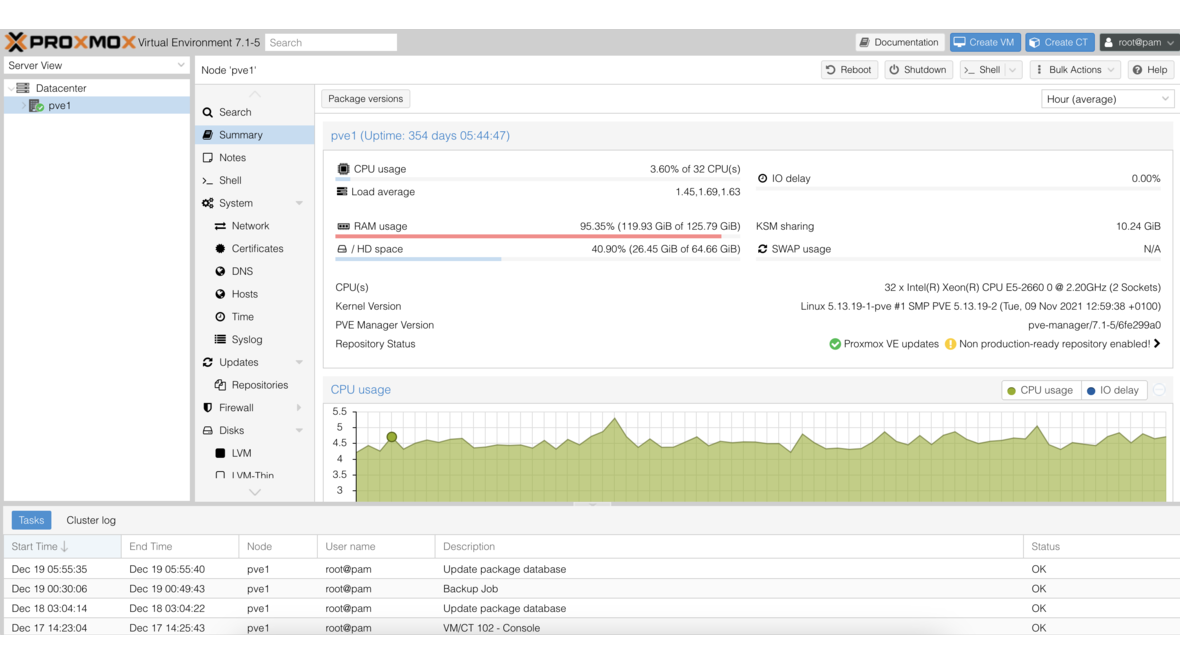
Anyone who regularly creates new virtual machines in Proxmox VE knows the problem: install the operating system, create users, configure networking, add SSH keys — the same manual steps for every VM. Cloud-Init solves this by automatically configuring VMs on first boot. Combined with Proxmox templates, new systems can be deployed in under a minute — fully configured and immediately ready for use.
What Is Cloud-Init?
Cloud-Init is an industry standard for automatic initial configuration of virtual machines. Originally developed for cloud environments like AWS and OpenStack, Cloud-Init is now pre-installed in virtually every Linux cloud image. On first boot, the Cloud-Init service reads configuration data from an attached data source and automatically performs the following steps:
- Set the hostname
- Create users and configure passwords
- Deploy SSH public keys
- Configure networking (static IP or DHCP)
- Install packages and run commands
Proxmox VE supports Cloud-Init natively and provides its own data source that can be configured directly through the web interface or the CLI.
Creating a Cloud-Init Template VM
The foundation for automated VM provisioning is a template VM built from a cloud-ready image. Most Linux distributions offer pre-built cloud images that already include Cloud-Init.
Download a Cloud Image
# Download Ubuntu 24.04 cloud image
wget https://cloud-images.ubuntu.com/noble/current/noble-server-cloudimg-amd64.img

# Alternative: Debian 12 cloud image
wget https://cloud.debian.org/images/cloud/bookworm/latest/debian-12-genericcloud-amd64.qcow2
Create the VM and Import the Image
# Create a new VM (ID 9000 as a template convention)
qm create 9000 --name ubuntu-cloud-template --memory 2048 --cores 2 \
  --net0 virtio,bridge=vmbr0 --ostype l26 --scsihw virtio-scsi-single

# Import the cloud image as a disk
qm set 9000 --scsi0 local-lvm:0,import-from=/root/noble-server-cloudimg-amd64.img

# Attach the Cloud-Init drive
qm set 9000 --ide2 local-lvm:cloudinit

# Set boot order to the SCSI disk
qm set 9000 --boot order=scsi0

# Enable serial console for cloud images
qm set 9000 --serial0 socket --vga serial0
The Cloud-Init drive (ide2) is a special ISO image that Proxmox VE regenerates with the current configuration data on every VM start.
Configure Cloud-Init Parameters
# Configure default user and SSH key
qm set 9000 --ciuser admin --cipassword $(openssl passwd -6 'SecurePassword')
qm set 9000 --sshkeys ~/.ssh/authorized_keys

# Configure networking (DHCP)
qm set 9000 --ipconfig0 ip=dhcp

# Set DNS server
qm set 9000 --nameserver 1.1.1.1 --searchdomain example.com
Convert the VM to a Template
# Convert VM to a template
qm template 9000
After conversion, the VM can no longer be started or modified — it serves exclusively as a blueprint for new clones.
Cloning VMs from the Template
New VMs can be created from the template in seconds:
# Create a full clone
qm clone 9000 110 --name webserver-01 --full

# Adjust Cloud-Init parameters for the clone
qm set 110 --ipconfig0 ip=10.0.10.110/24,gw=10.0.10.1
qm set 110 --nameserver 10.0.10.1
qm set 110 --ciuser deploy

# Start the VM
qm start 110
The VM boots, Cloud-Init detects the configuration, and sets up the hostname, network, user, and SSH keys within seconds. The VM is then reachable via SSH — without any manual interaction.
Automating Provisioning with Scripts
For deploying multiple VMs, a simple Bash script does the job:
#!/bin/bash
TEMPLATE_ID=9000
BASE_IP="10.0.10"
GATEWAY="10.0.10.1"
SSH_USER="deploy"

declare -A VMS=(
  [201]="app-server-01"
  [202]="app-server-02"
  [203]="db-server-01"
  [204]="monitoring-01"
)

for VMID in "${!VMS[@]}"; do
  NAME="${VMS[$VMID]}"
  echo "Creating VM $VMID ($NAME)..."
  qm clone $TEMPLATE_ID $VMID --name "$NAME" --full
  qm set $VMID --ipconfig0 "ip=${BASE_IP}.${VMID}/24,gw=${GATEWAY}"
  qm set $VMID --ciuser "$SSH_USER"
  qm resize $VMID scsi0 +18G
  qm start $VMID
  echo "VM $NAME started."
done
This script creates, configures, and starts four VMs in just a few minutes. Combined with Ansible or other configuration management tools, the software configuration can then be automated as well.
Comparison: Manual Install vs. Cloud-Init vs. Terraform
| Feature | Manual Installation | Cloud-Init Template | Terraform + Cloud-Init |
|---|---|---|---|
| Deployment time | 30–60 minutes | 1–2 minutes | 1–2 minutes |
| Reproducibility | Low (documentation-dependent) | High (template-based) | Very high (declarative, versioned) |
| Learning curve | Low | Medium | High |
| Scaling | Manual per VM | Script-based | Fully automated |
| Network configuration | Manual in installer | Automatic via Cloud-Init | Automatic via provider |
| Drift detection | None | None | Built-in |
| Ideal for | Individual test VMs | SMBs with 10–50 VMs | Large environments, IaC workflows |
For most mid-sized businesses, Cloud-Init with templates offers the best balance of effort and benefit. Terraform becomes worthwhile when Infrastructure-as-Code workflows are already established or hundreds of VMs need to be managed.
Practical Tips
Template maintenance: Update your cloud images regularly. Create a new template with the current image and remove the old one — this ensures new VMs always contain the latest security updates.
Resize disks: Cloud images typically have only 2–3 GB of disk space. Use qm resize after cloning to enlarge the disk. Cloud-Init ensures the partition is automatically expanded on first boot.
Multiple templates: Create separate templates for different use cases — a minimal template for container hosts, a more comprehensive one for application servers. Use consistent numbering (e.g., 9000–9099 for templates).
Monitoring with DATAZONE Control
In environments with dozens of automatically provisioned VMs, it is easy to lose track. DATAZONE Control detects new VMs automatically and integrates them into centralized monitoring: CPU, RAM, disk, network, and service availability are monitored immediately. Alerts for resource bottlenecks or failed services ensure that problems are detected before they impact operations — regardless of whether five or five hundred VMs are running.
Want to automate VM provisioning in your Proxmox environment? Contact us — we help you set up Cloud-Init templates and automate your Proxmox infrastructure.
More on these topics:
More articles
TrueNAS as an Immutable Backup Target for Veeam & Proxmox (S3 Object Lock)
Immutable backups against ransomware: how to use TrueNAS as an S3-compatible immutable target with Object Lock for Veeam and Proxmox Backup Server — on-premises, without cloud egress.
TrueNAS Proxmox plugin 25.10.6: four observations from our test lab, fed back to iXsystems as a partner
Early adoption means helping to shape. We run the official TrueNAS storage plugin for Proxmox VE productively and document here what we observed in version 2.1.17+deb1 on PVE 9.2.11 and TrueNAS SCALE 25.10.6 — including workarounds for the community and a note on how we fed it back to iXsystems.
Proxmox vs. VMware vSphere 8 -- 2026 update: the state of play after two years of Broadcom
Proxmox vs VMware 2026 -- an honest comparison against vSphere 8 after two years of Broadcom. Where Proxmox has caught up, where vSphere still leads. From the trenches.